Settings
Overview
The settings screen collects global preferences for ClipReplace. Use it to control language, the replacement shortcut, clipboard access behavior, notifications, crash reports, and links to billing and legal information.
Screen layout
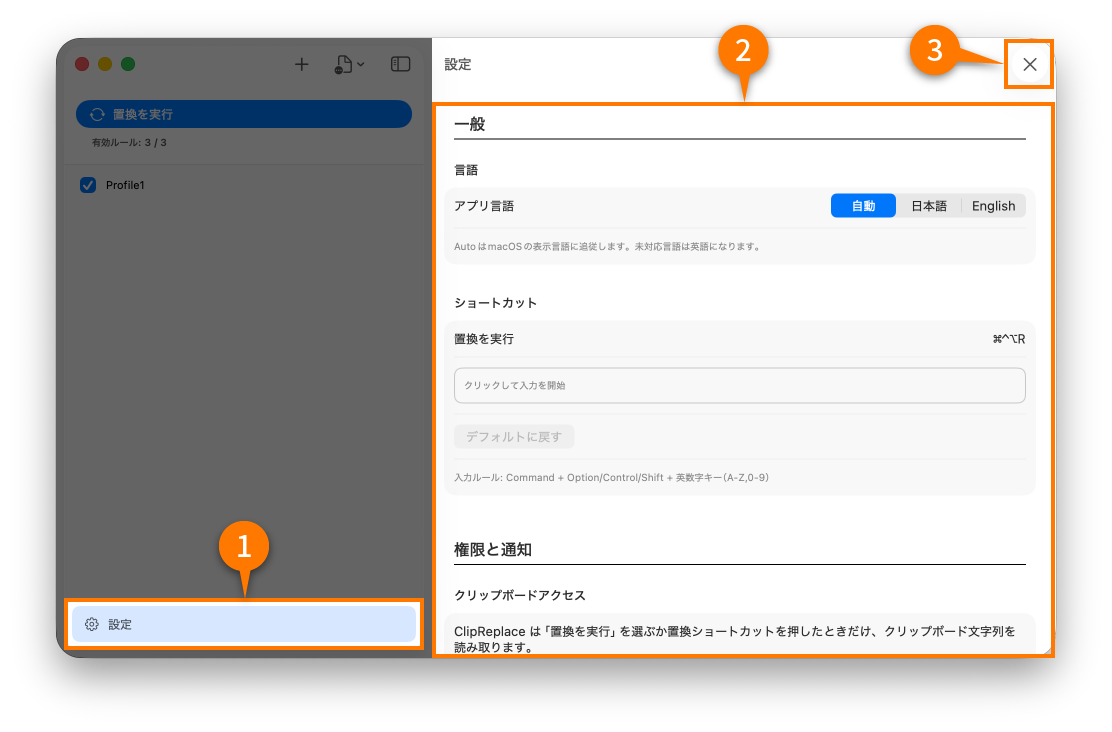
The settings screen groups options by concern so you can review operational behavior in one place without switching between profile screens.
Language
Choose the display language for the application UI. The app supports both Japanese and English.
Shortcut
Review or update the global shortcut used to trigger replacement. The shortcut is meant for the common flow of copy, replace, and paste without opening the main UI.
Clipboard access
Clipboard text is read only when the user explicitly triggers replacement. The app does not monitor clipboard contents continuously.
Notifications
Notification settings control whether the app shows the result of a replacement run or operational feedback such as errors and completion states.
Crash reports
Crash diagnostics help improve application stability. Sensitive replacement content is not intentionally attached to crash reports.
Full version
The settings screen also links to the full version purchase flow. Use it when the number of profiles or active rules exceeds the free edition limits.
Legal information
Open the app terms and privacy policy from the legal section when you need the latest published documents.
Onboarding
If you want to review the introduction screens again, use the onboarding section to re-open the setup flow.