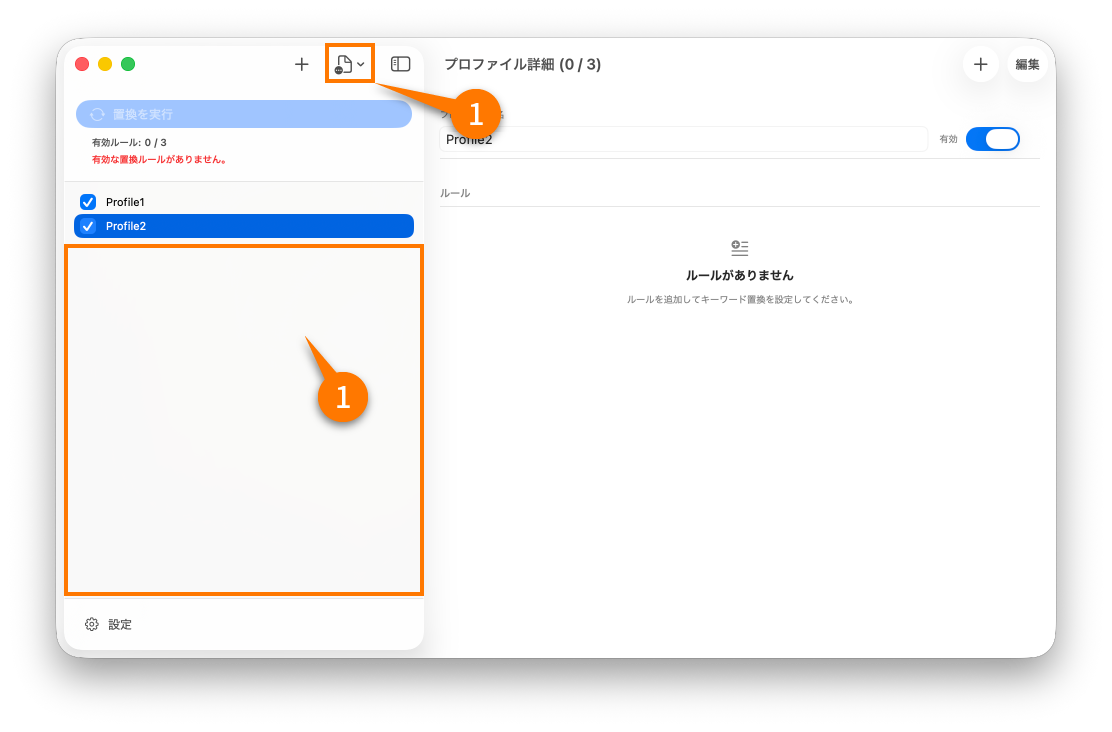
Profiles
Overview
Profiles are containers for rules. They let you keep one set of replacements for each environment or purpose and switch them on or off as a group.
Screen layout
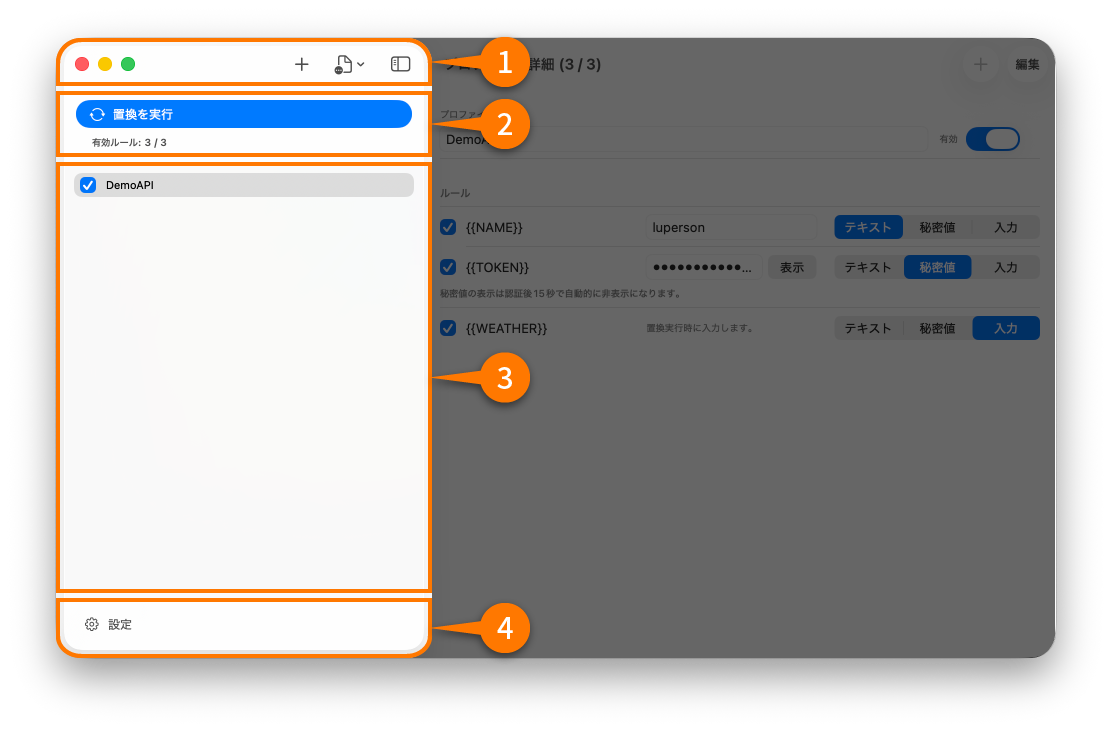
The profile screen shows the profile list, the current ordering, the enabled state, and the actions available for each profile.
Add a profile
Create a new profile when you want a separate rule set for a different environment, team, or workflow.
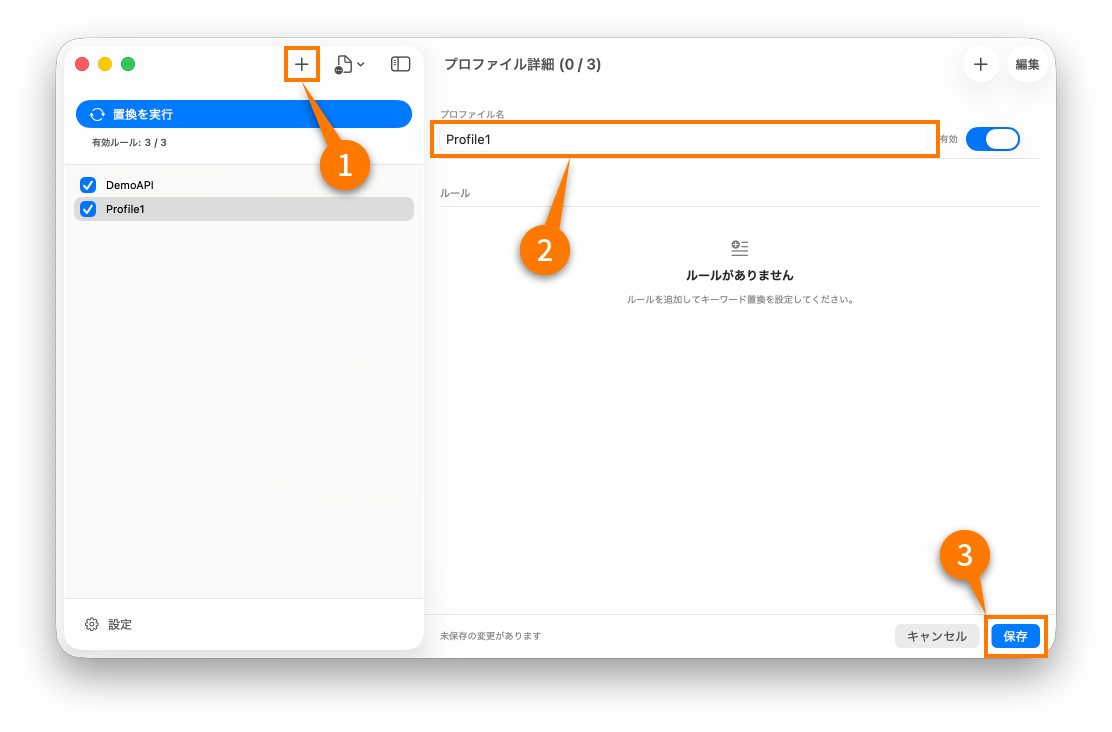
- Open the profile list.
- Add a new profile.
- Set a clear name.
- Add rules inside that profile.
Reorder profiles
Profile order matters when multiple active profiles contain the same keyword.
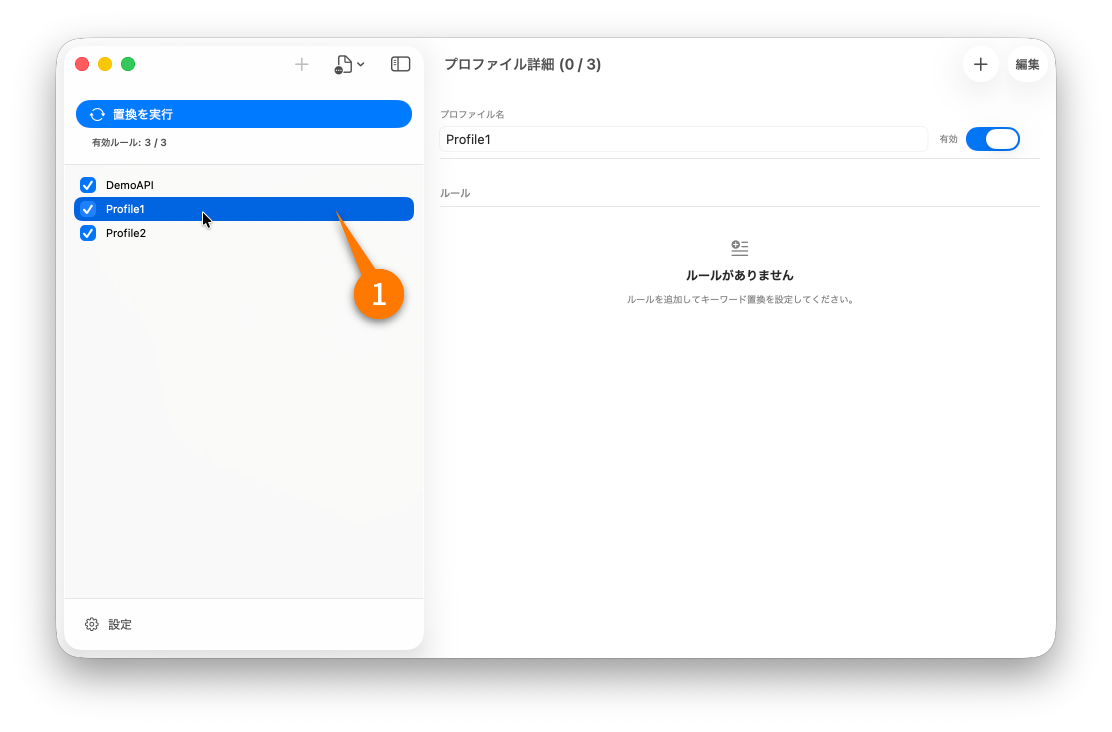
Move the higher-priority profile above the others if you want its rule values to win.
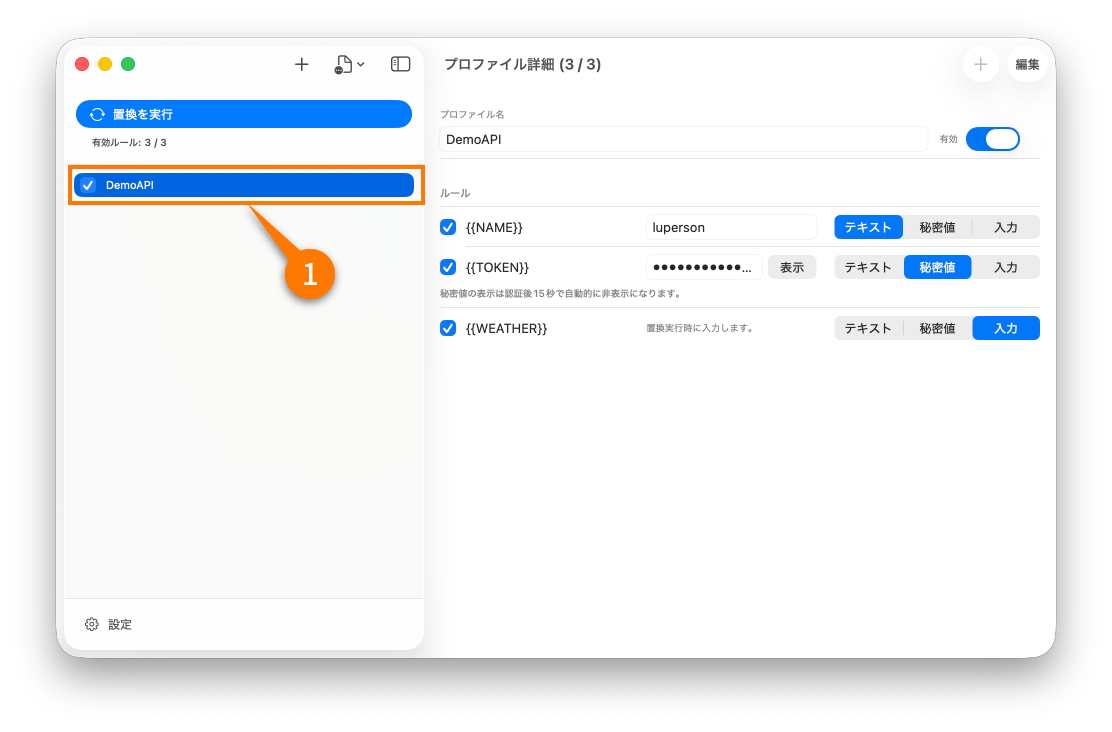
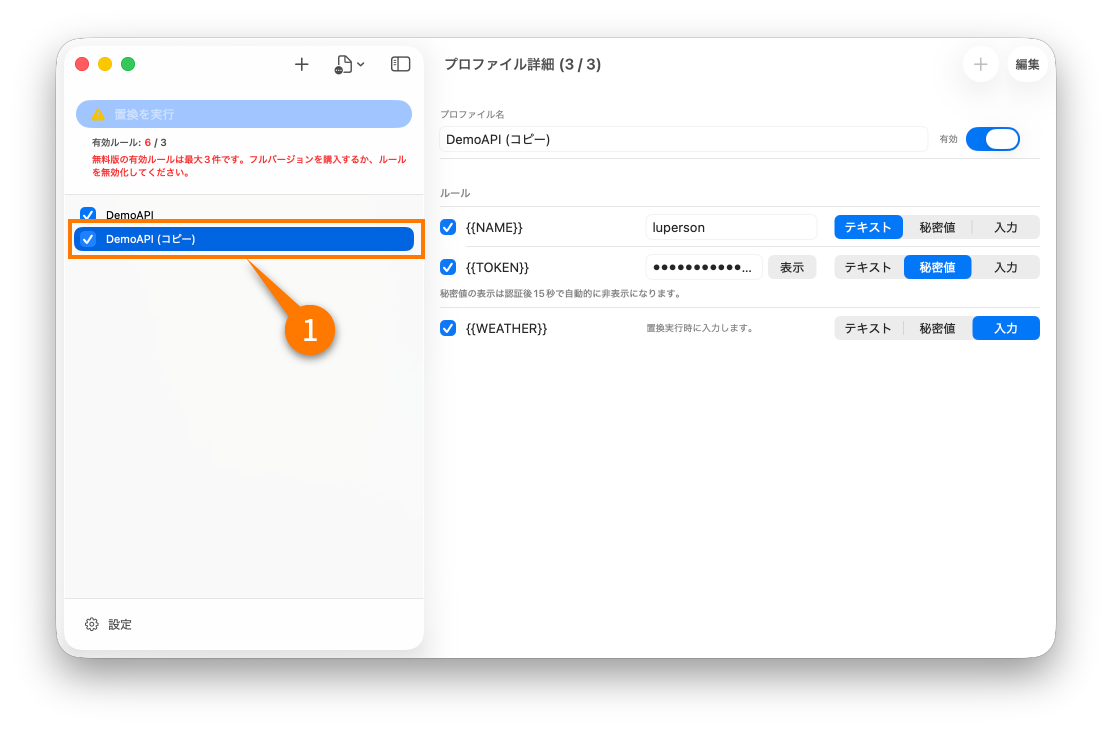
Duplicate a profile
Duplicating is useful when you want to start from an existing rule set and adjust only a few values for another environment.
Delete a profile
Delete a profile when you no longer need the entire rule set. If the profile contains secret-backed rules, confirm that the related values are no longer needed before removing it.
Enable / disable profiles
Disabling a profile removes all of its rules from the replacement target set without deleting the profile itself.
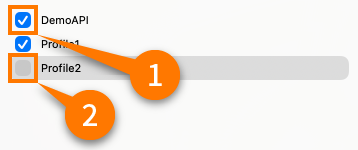
Use this when you want to keep rarely used rules around but exclude them from day-to-day replacement.
Profile priority
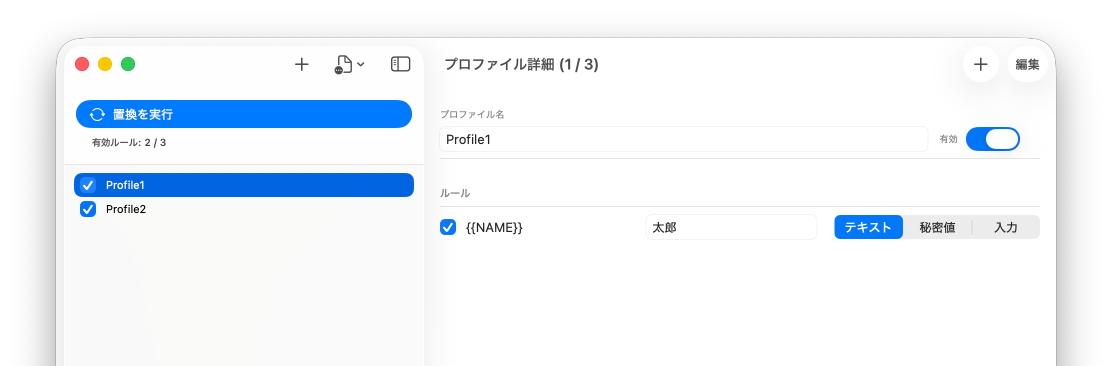
When two active profiles contain the same keyword, the profile order determines which value wins.
When Profile1 and Profile2 both define {{ NAME }}
If Profile1 is above Profile2, the value from Profile1 is used first.
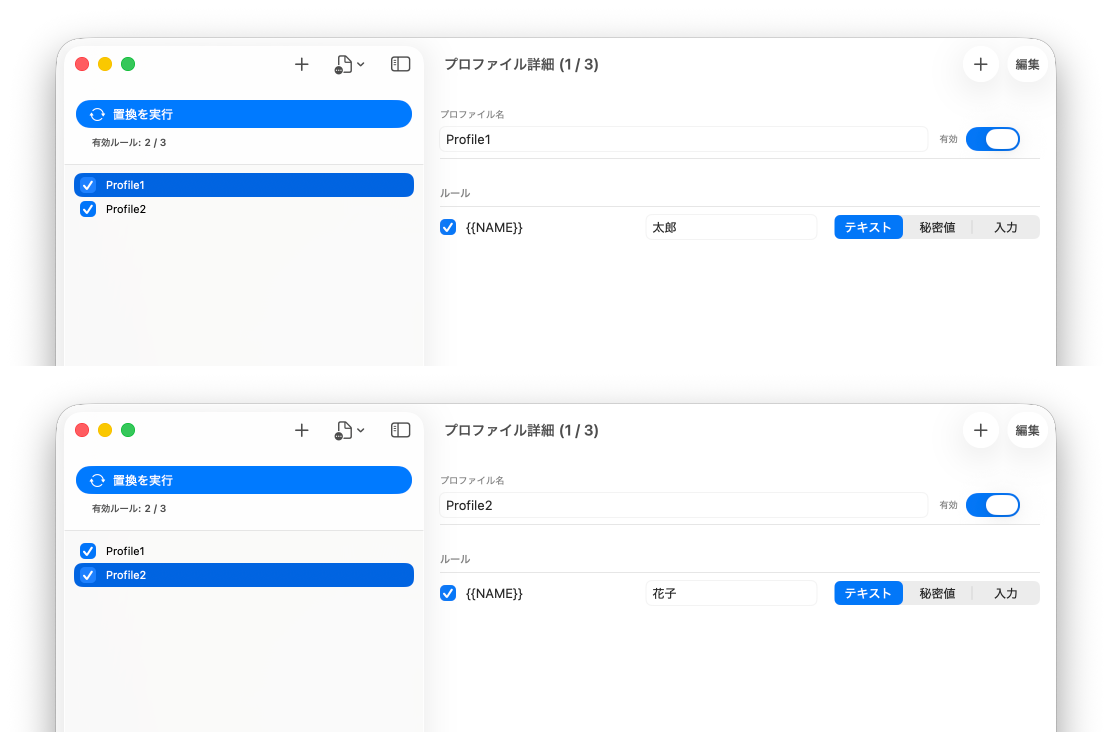
If Profile2 is above Profile1, the value from Profile2 is used instead.
Export profiles
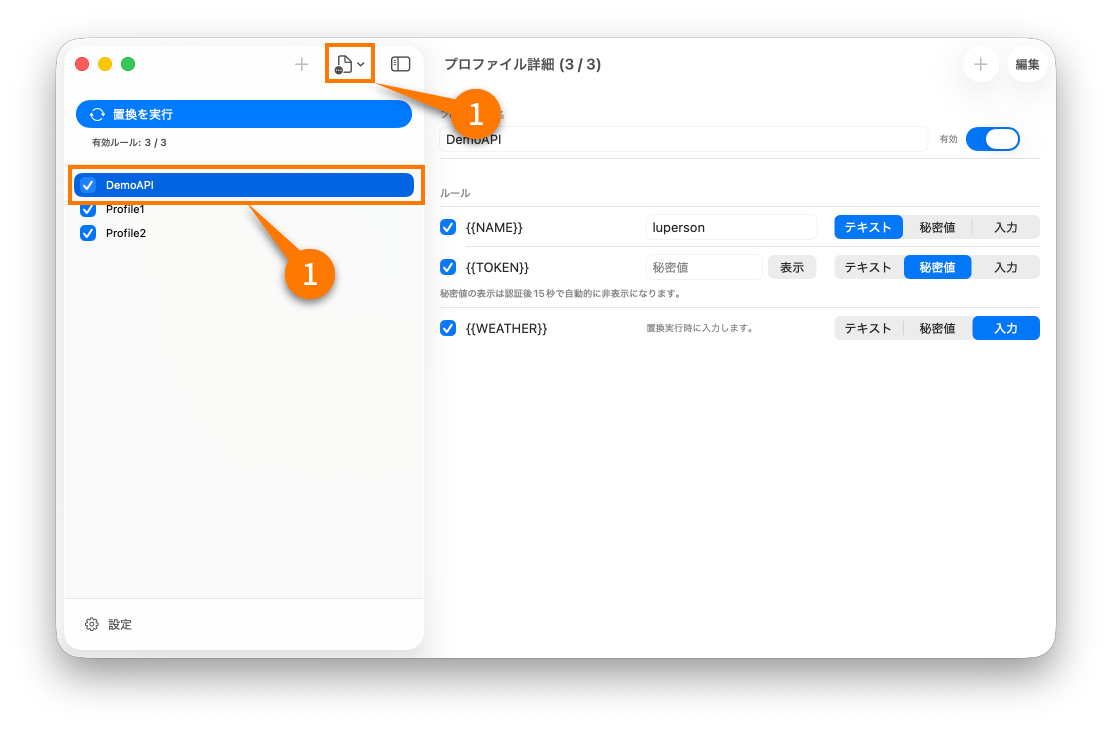
Export profiles when you want to back them up or move them to another Mac.
- Select the profile or profiles to export.
- Choose whether secret values should be included.
- If secrets are included, complete the macOS authentication step.
- Save the export file in a secure location.
Handle exported files carefully
Export files can contain operational configuration. If you include secrets, treat the file as sensitive material and store or transfer it accordingly.
Import profiles
Import profiles when you want to restore a backup or share a prepared rule set with another environment.
- Start the import flow.
- Choose the export file.
- Review how imported profiles should be merged or added.
- Authenticate if secret values are included.