Rules
Overview
Rules define the mapping from a keyword to a value. Each active replacement run uses the set of enabled rules inside the enabled profiles.
Screen layout
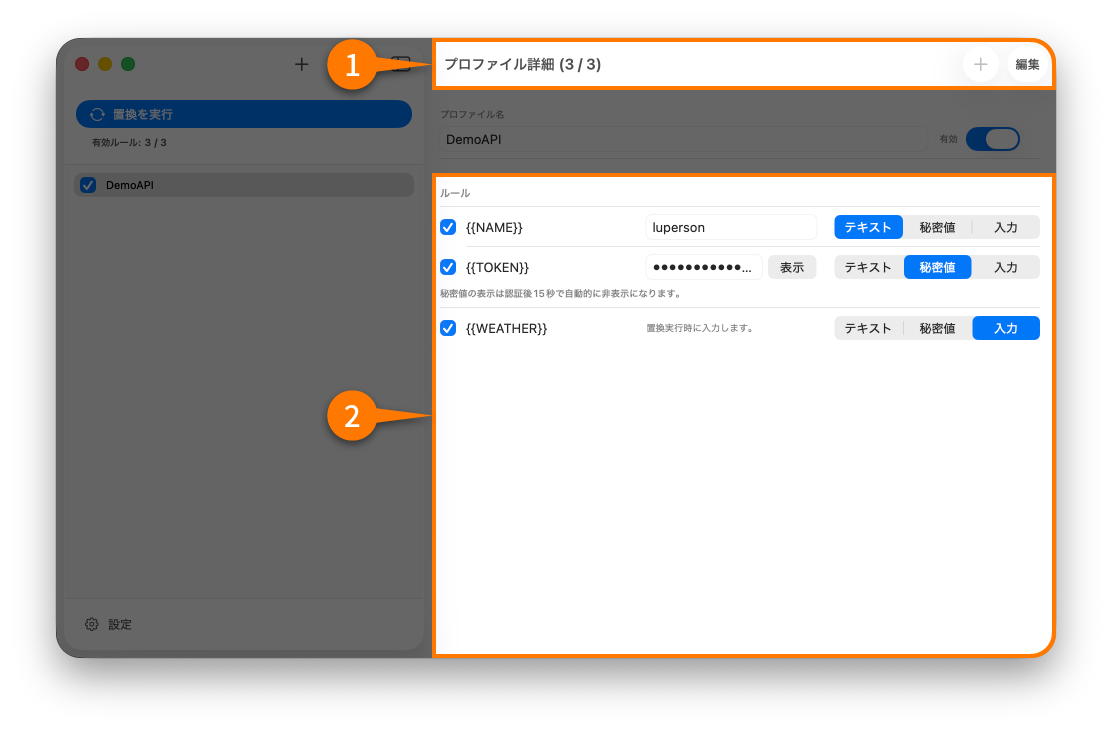
The rules screen shows the keyword, value type, enable state, and ordering for each rule.
Add a rule
Add a rule when you want ClipReplace to substitute a new keyword in copied text.
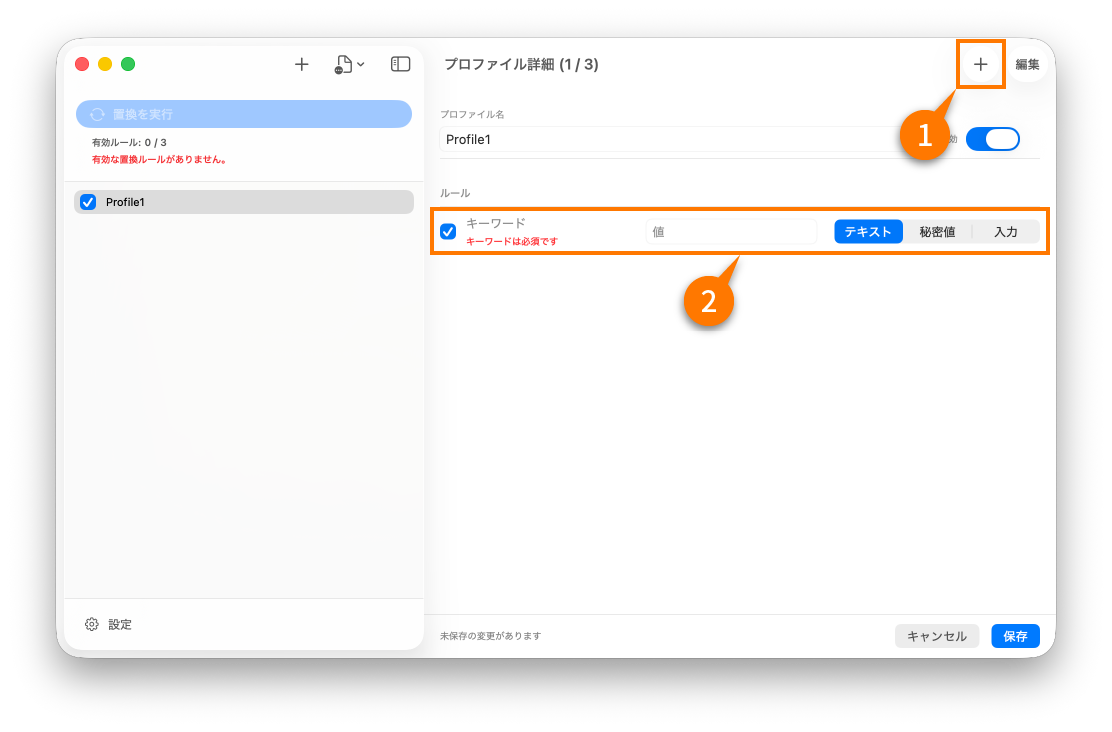
- Open a profile.
- Add a rule.
- Enter the keyword exactly as it appears in the source text.
- Choose whether the value is plain text, a secret, or per-run input.
Rule settings
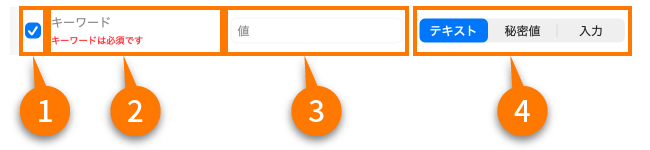
Rules typically include:
- the keyword to search for
- the value source
- the replacement value itself, or the behavior used to retrieve it
Choose a keyword format that is unlikely to appear accidentally in normal text, such as {{KEY_NAME}}.
Reorder rules
Rule order matters when multiple rules touch related text or when the same keyword exists more than once.
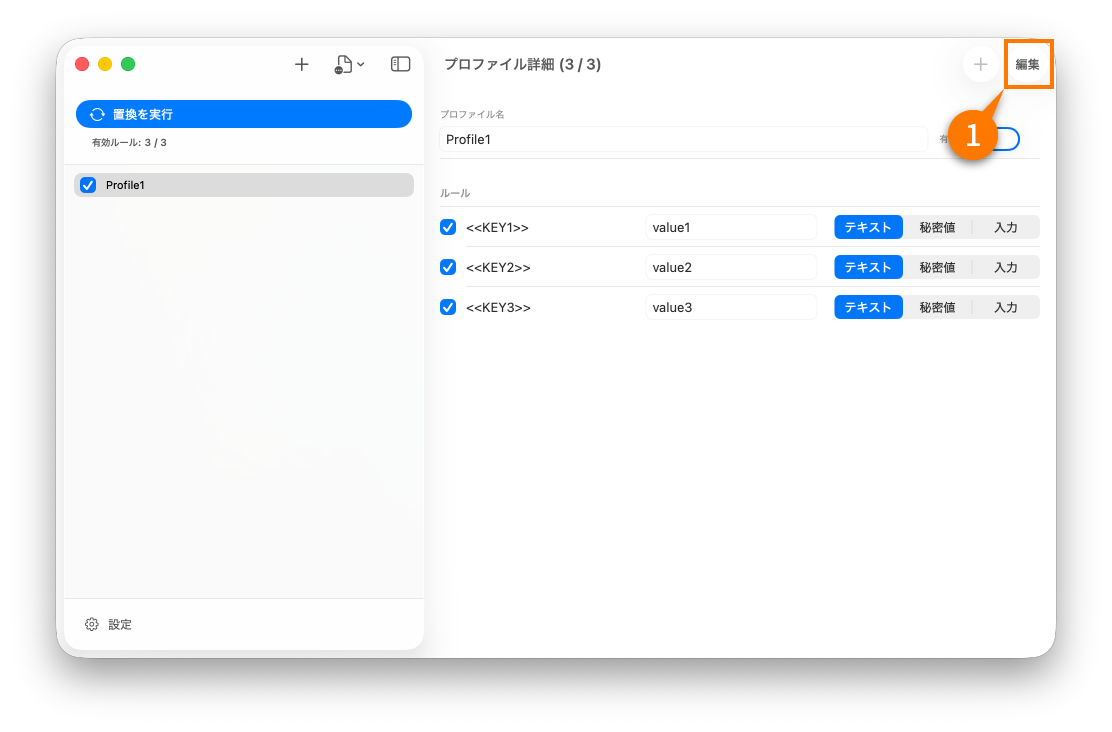
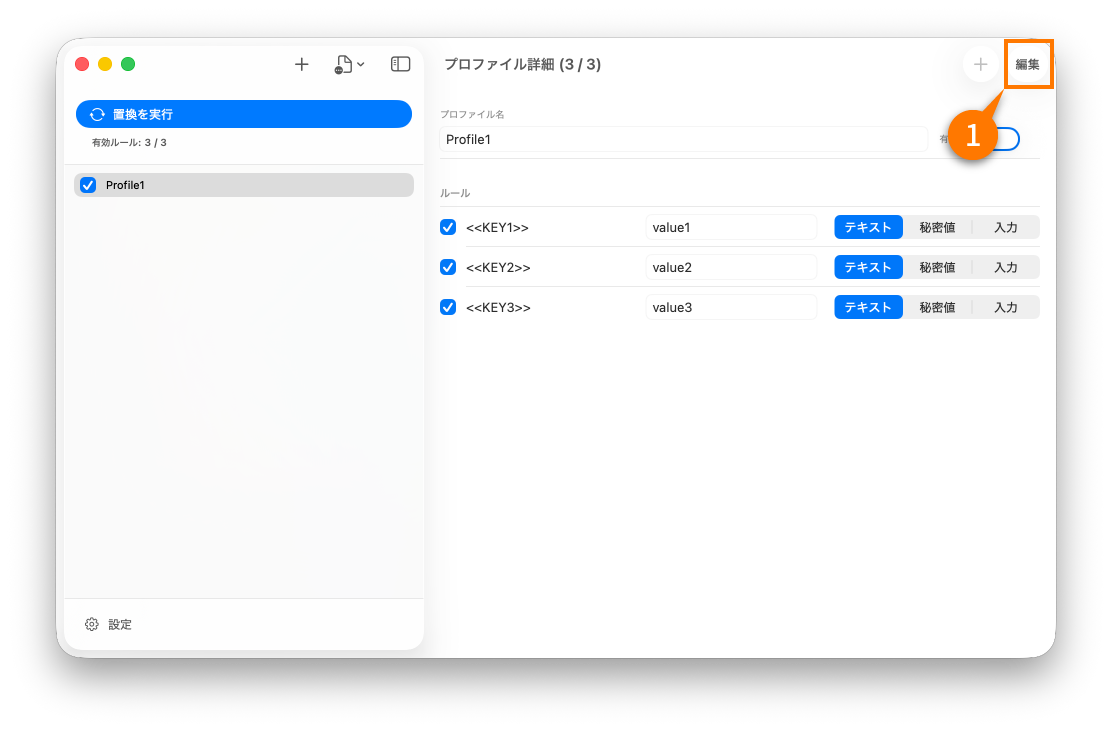
Delete a rule
Delete a rule when it should no longer participate in replacement at all.
Enable / disable rules
Disabling a rule removes it from replacement without deleting the keyword definition.
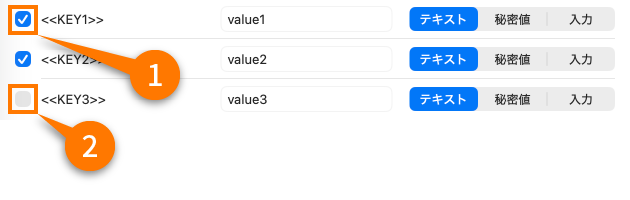
This is useful for temporary overrides or rarely used values.
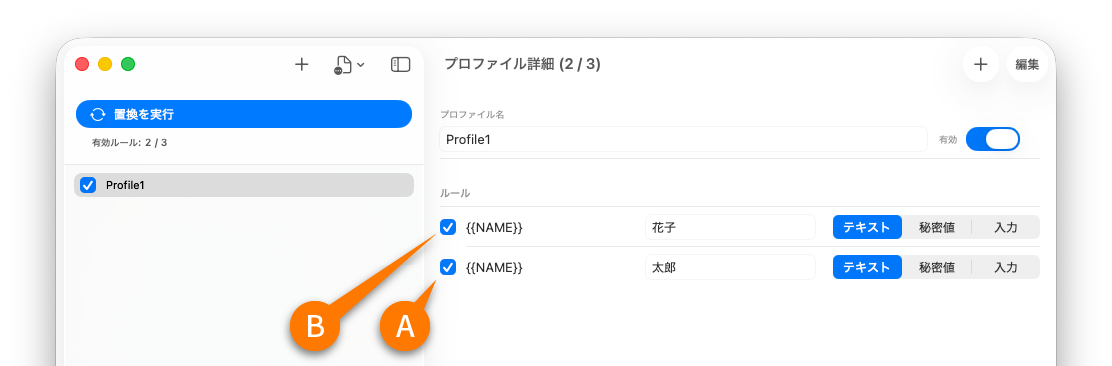
Rule priority
When multiple rules interact with the same keyword or generated result, order determines which one runs first.
When rule A is above rule B
Rule A is applied first.
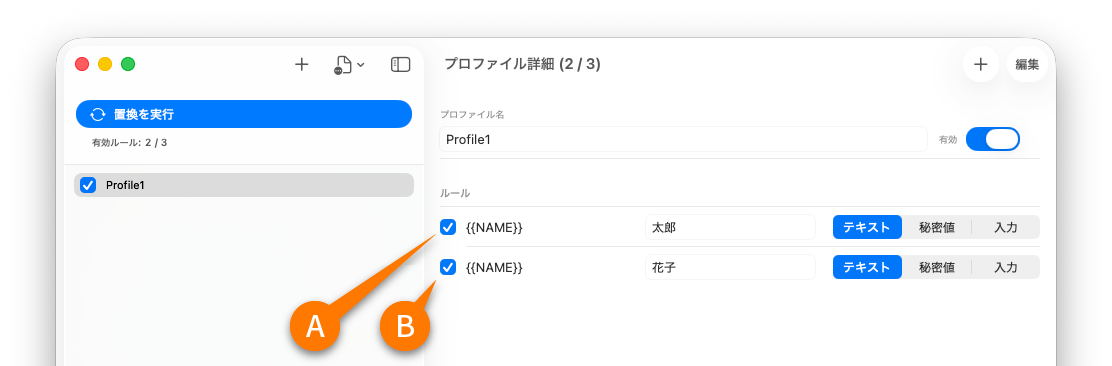
When rule B is above rule A
Rule B is applied first instead.
Nested keywords
Rules can reference values that are themselves composed from other keywords, but the structure must remain predictable.
Conditions for nesting
- The keyword relationship should be intentional and documented.
- The final dependency chain should stay understandable to the people using the profile.
- Avoid circular references.
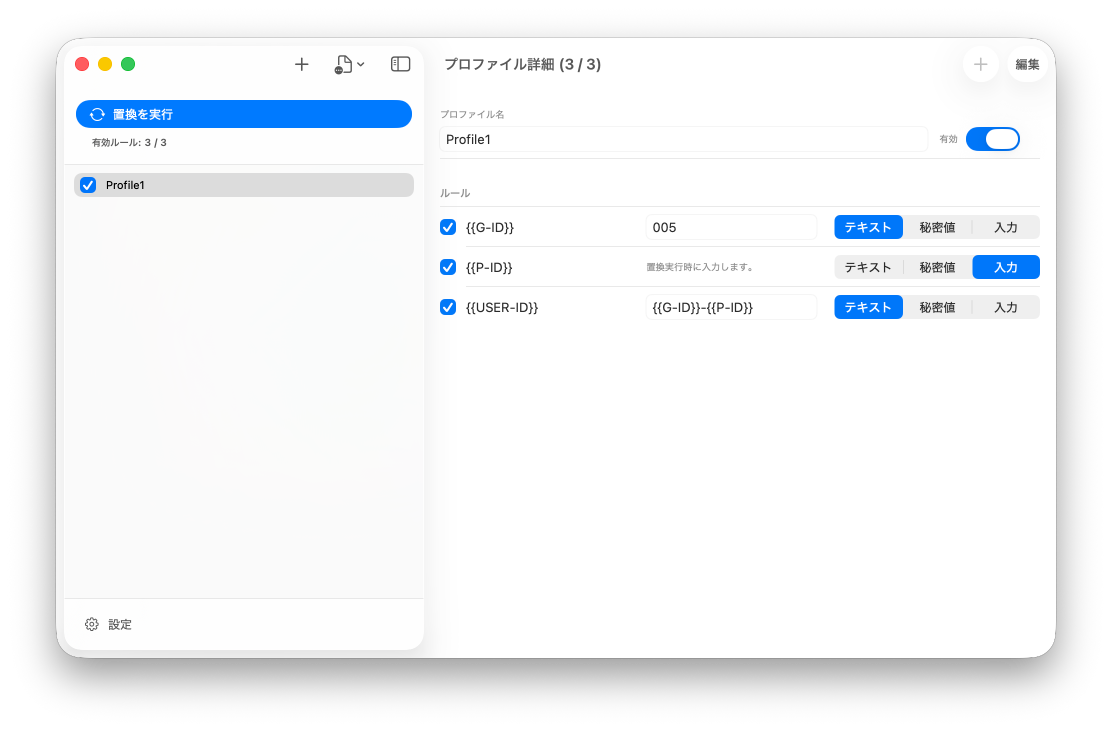
Example: build a user ID from a group ID and person ID
{{USER_ID}} = {{GROUP_ID}}-{{PERSON_ID}}
Example: enter the person ID at replacement time
Combine a static value such as {{GROUP_ID}} with a per-run input value when one part
must change every execution.